The desktop
Ideas from Haiku, NeXTSTEP and IRIX, made to work together.
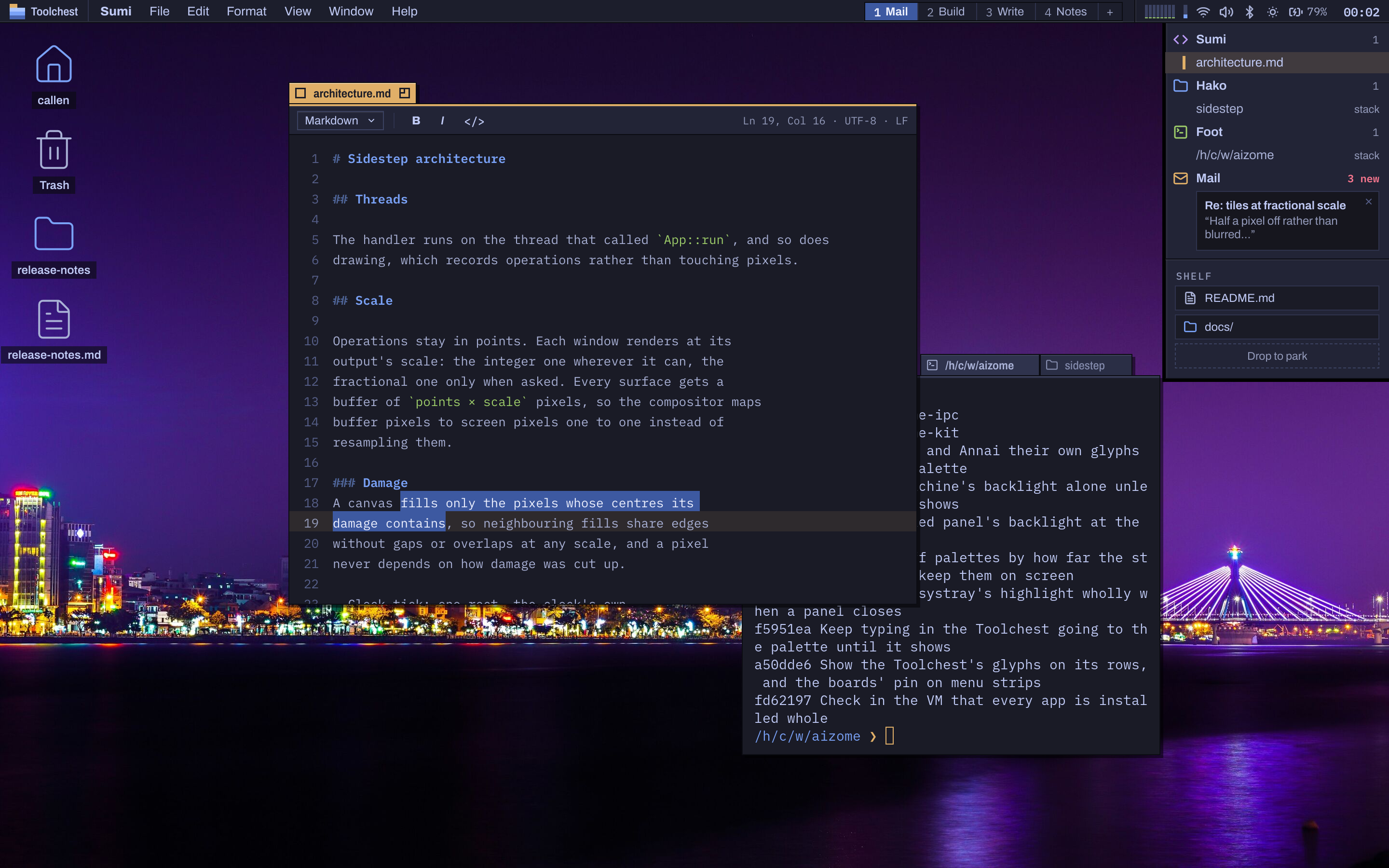
One process, the shell, draws everything of Aizome that isn't a window or an app: the menu bar, the Toolchest, the Desks, the Deskbar and the Shelf, the palette, menus, notifications, the desktop and the lock screen. The compositor draws the tabs and frames. Here is what they do.
Tabs and groups
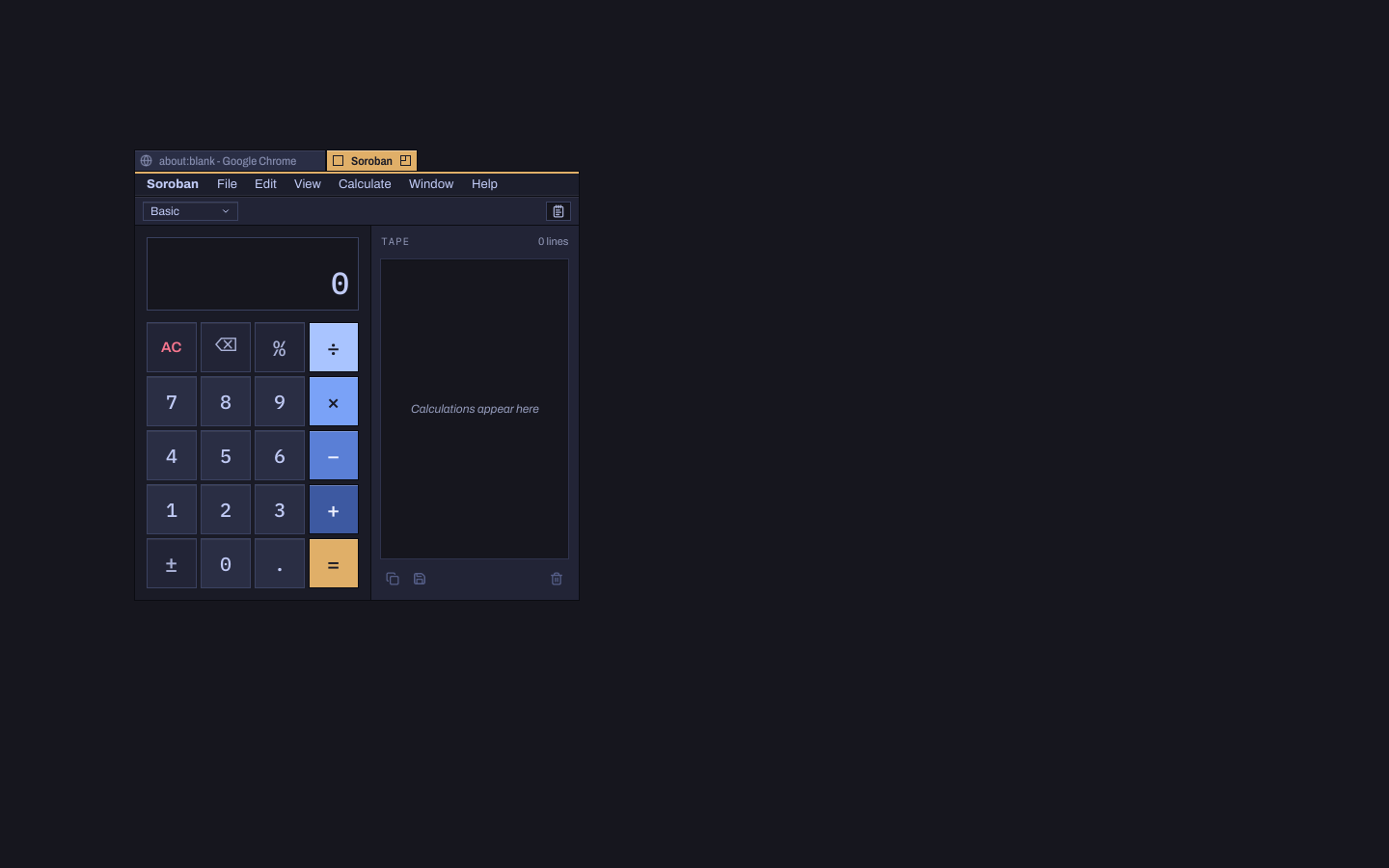
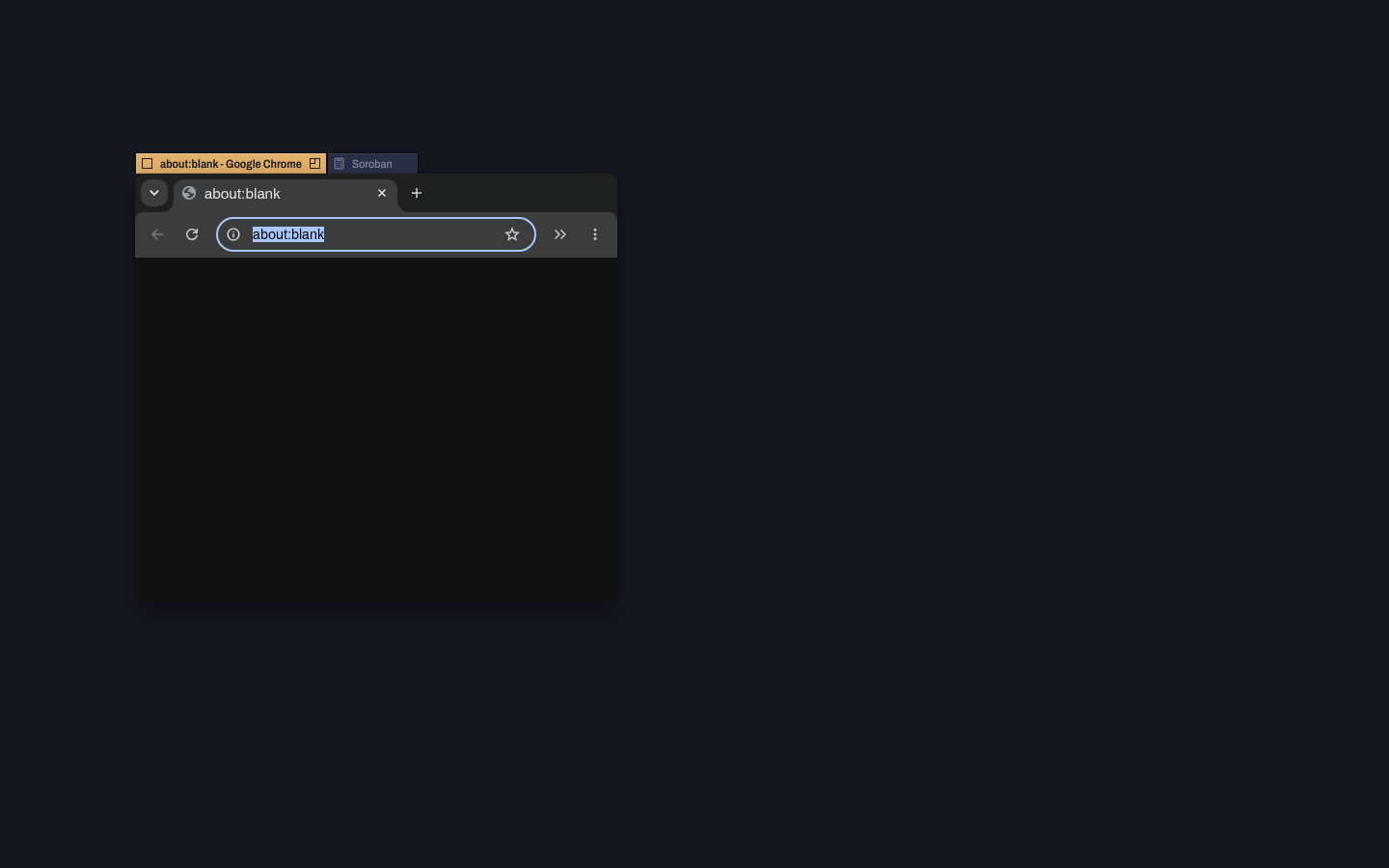
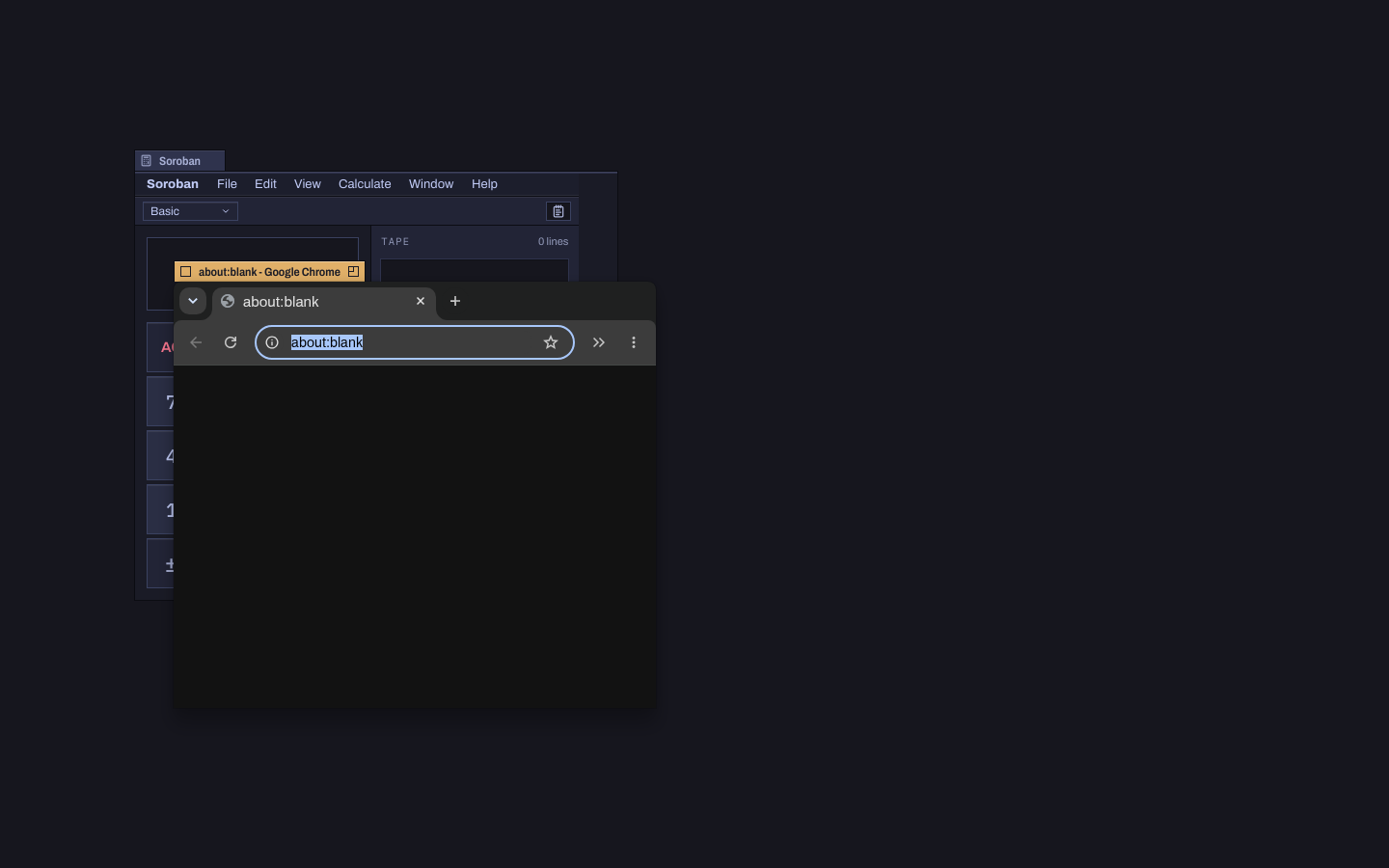
Every window wears a tab only as wide as its title, amber when it has the focus.
Tabs slide along the top edge with Shift-drag, so overlapping windows stay easy to find. Drop one tab among another window's and the windows stack into a group, from any apps, the tab going where you dropped it; click a tab to show its window. Drag a background tab away to take it out, or Alt-drag the one showing. A new window of the app you're using opens as another tab in its group, and Settei can turn that off.
ControlSuperS stacks a window with the one behind it, and ControlShiftSuperS takes its tab out. ShiftSuper[ and ShiftSuper] show the previous and next tab. A double click on a tab, or its zoom box, fills the screen; a middle click sends the window to the back. Apps reopen where they last were.
The marking menu
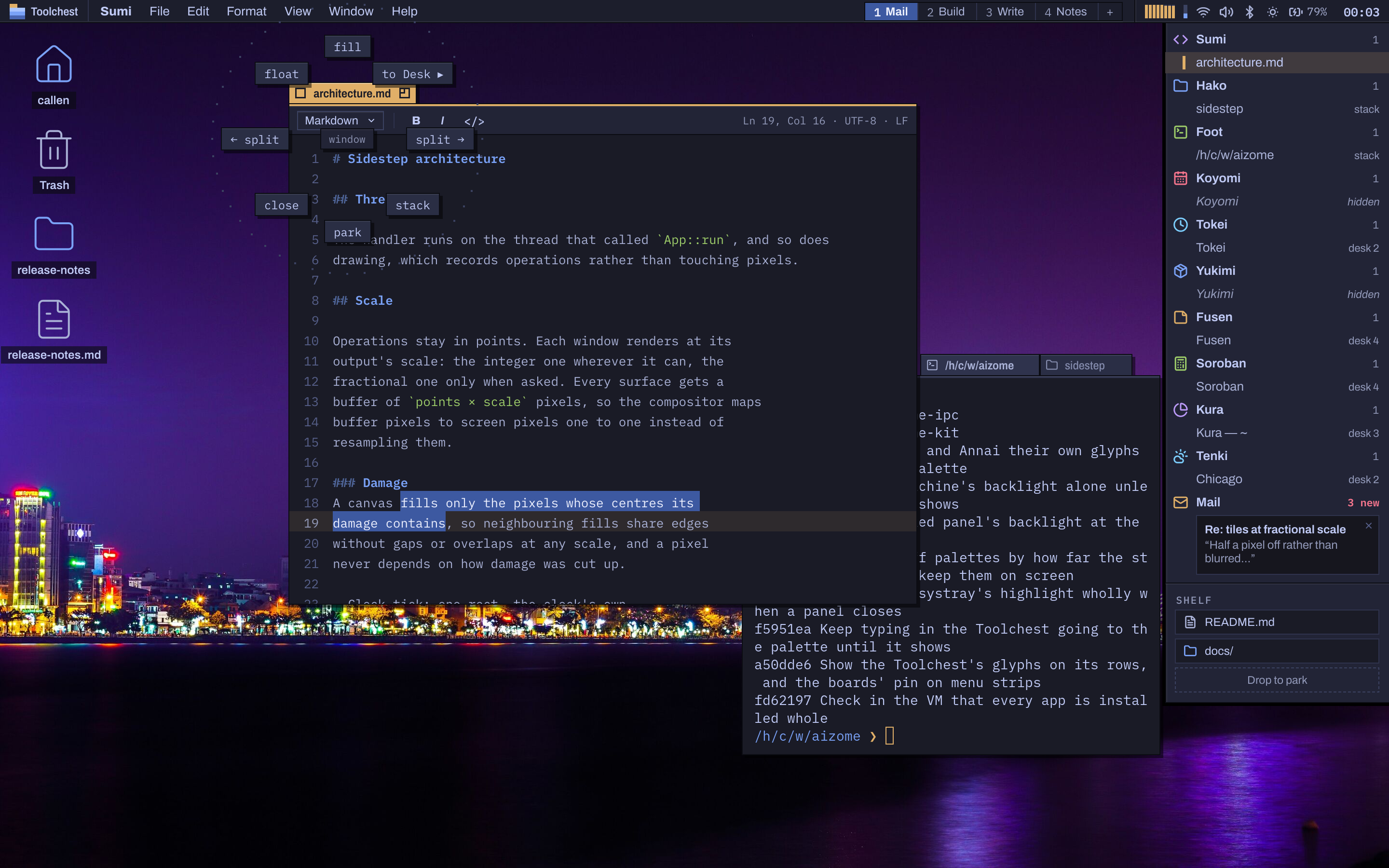
Right-press a tab and its window's verbs ring it: fill, park, split left and right, close, stack, float, and to a Desk. ControlSuperSpace opens it around the focused window from the keyboard: an arrow picks the verb that way, a letter one of the others, and D then a digit sends the window to a Desk.
The four arrows with AltSuper do the same without the menu: AltSuperUp fills, AltSuperDown parks, AltSuperLeft and AltSuperRight split.
Menus
One menu bar, and the whole menu wherever the pointer is.
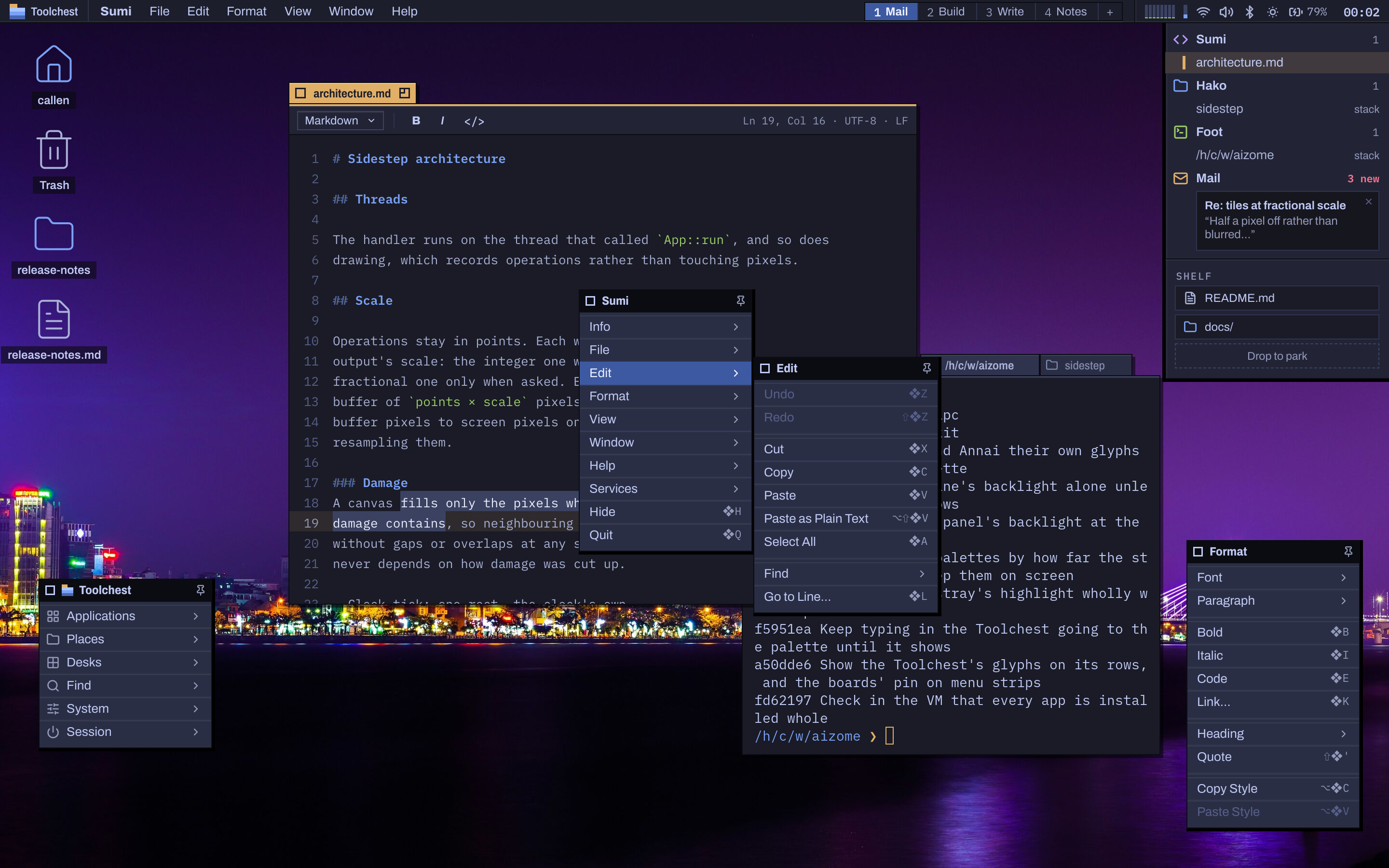
The menu bar shows the focused app's name in bold and its menus. Super-right-click anywhere, or a right click on the empty desktop, opens the app's whole menu at the pointer, each menu a submenu, as NeXT did.
Drag any menu's title strip and it tears off into a palette that stays, moved by its strip, with a close box and a pin. Palettes show while their app has the focus, or always once pinned, and come back at your next login.
Menus forgive: moving toward an open submenu doesn't close it, typing filters a menu and its submenus, and F10 or AltSuperM takes the keyboard to the menu bar. Services act on the selected text in any app: a new note, open in Sumi, search the web, calculate.
The command palette
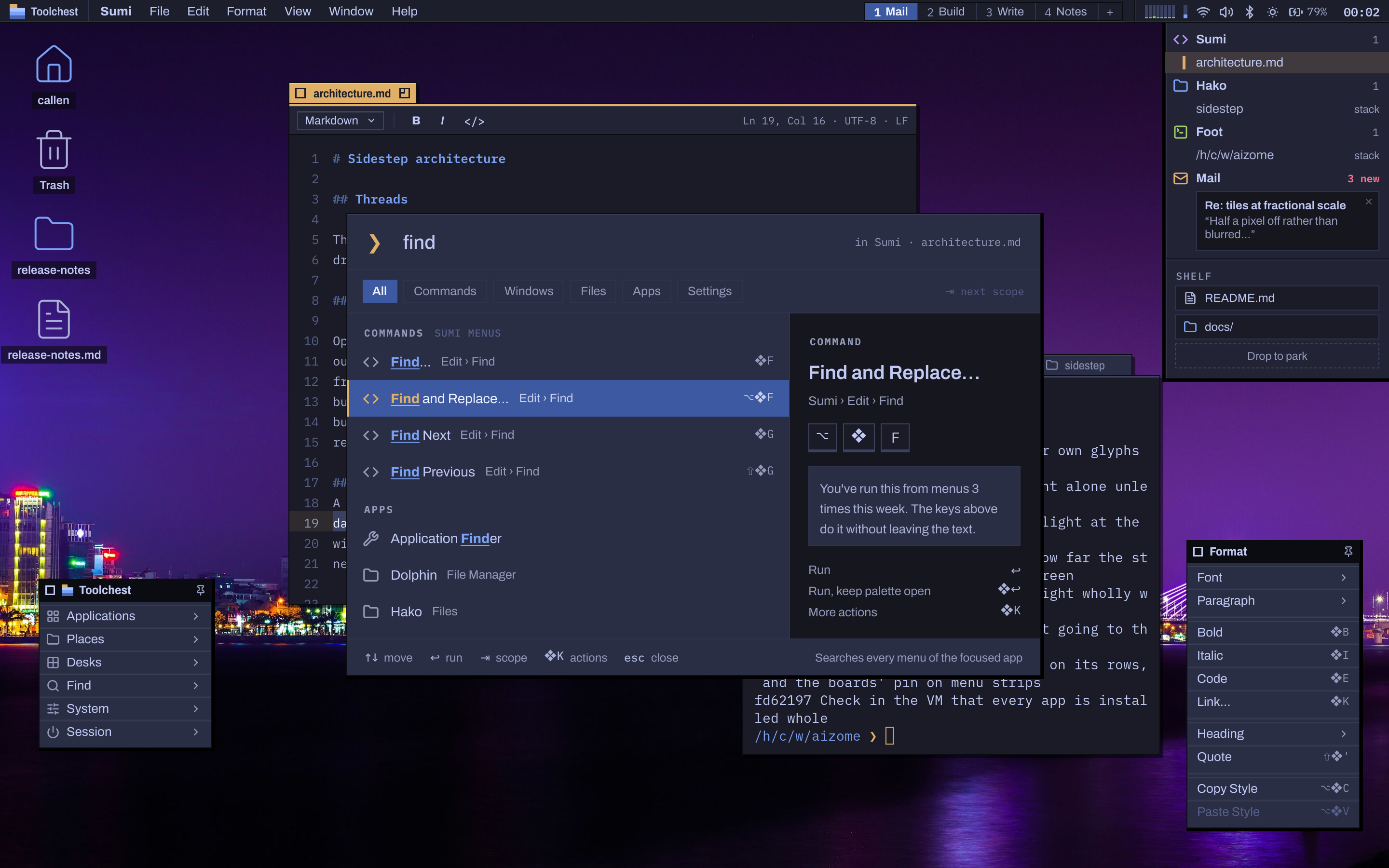
SuperSpace searches every command of the app you're in.
Each menu item of the focused app, with its path and its shortcut in keycaps; windows; files in your home folder; apps; every setting, which opens Settei at that place; and actions: lock, sleep, Night or Day, Do Not Disturb, a screenshot, a recording. Type a sum and the first row is the answer.
Run a command from the menus or the palette three times in a week and the palette's coach shows you its keys. Tab moves between scopes, SuperK opens a row's actions, and what you pick is remembered, so the palette learns. It is drawn ahead while hidden, so it opens at once.
The Toolchest
IRIX's launcher, at the left of the menu bar.
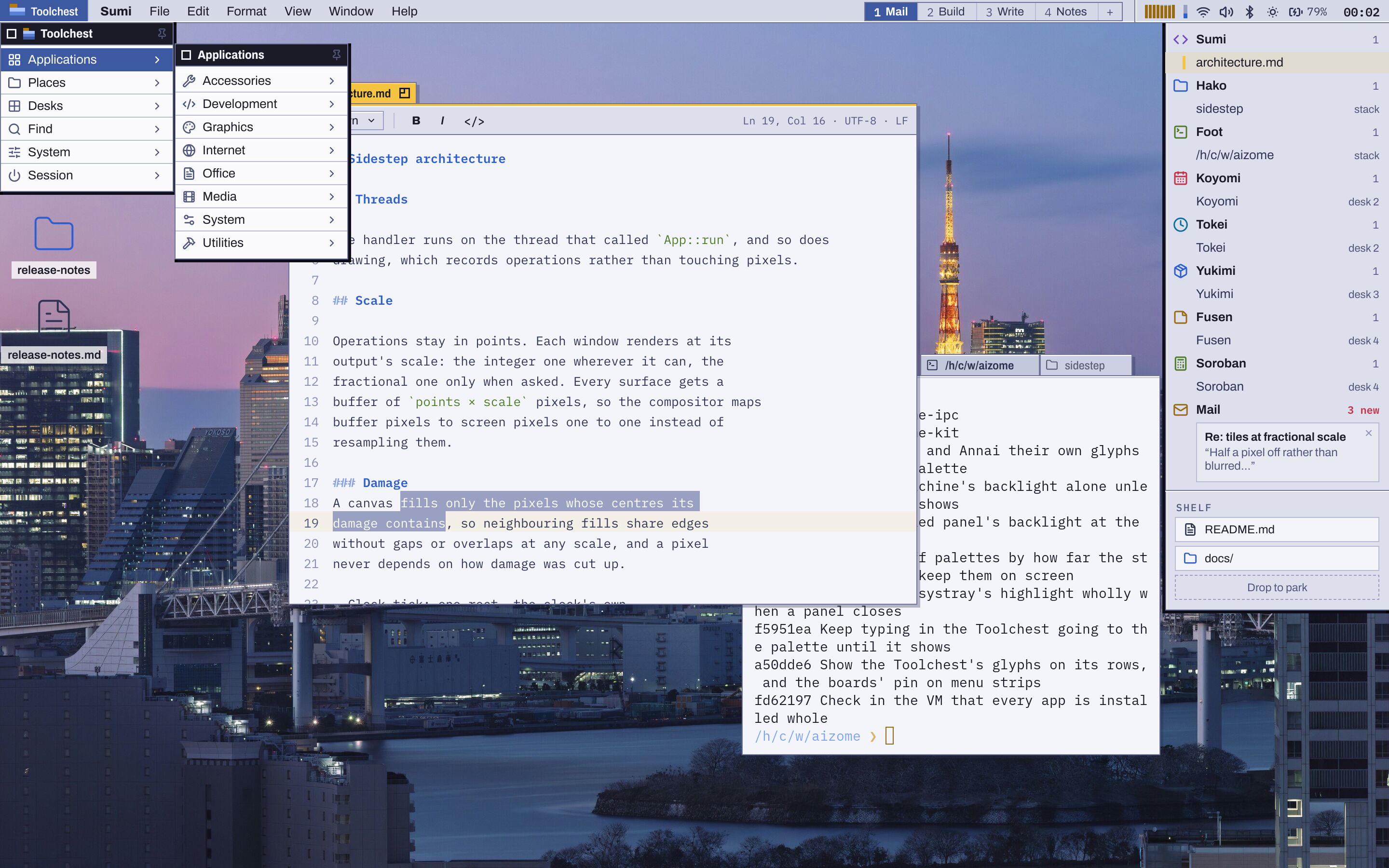
The Toolchest button, or AltSuperSpace, opens it: Applications by category, each with its icon, name and what it is; Places; Desks; Find, which opens the palette in one scope; System; and Session, to lock, sleep, restart, shut down or log out. Start typing and it becomes the palette.
Opening an app that's running brings its last window forward, from another Desk if need be. Application Launches… keeps the last 64 launches; one that fails says so, and Open in Logs shows its output in Nisshi.
The Deskbar and the Shelf
Haiku's Deskbar instead of a Dock.
At the top right, each running app with its windows beneath it: the focused one marked in the focus colour, hidden ones in italics, stacked ones and those on another Desk said so. Notifications are filed under the app that sent them. Drag a window's row onto a Desk in the menu bar to move it there.
The Shelf, from NeXT, parks a drag halfway: files, folders, text, images and links wait there until you drag them on, across sessions. Drag the Deskbar's grip to stand it at the left or the right, and its inner edge to make it wider, slimmer or icons only. It can hide itself until you need it.
Desks
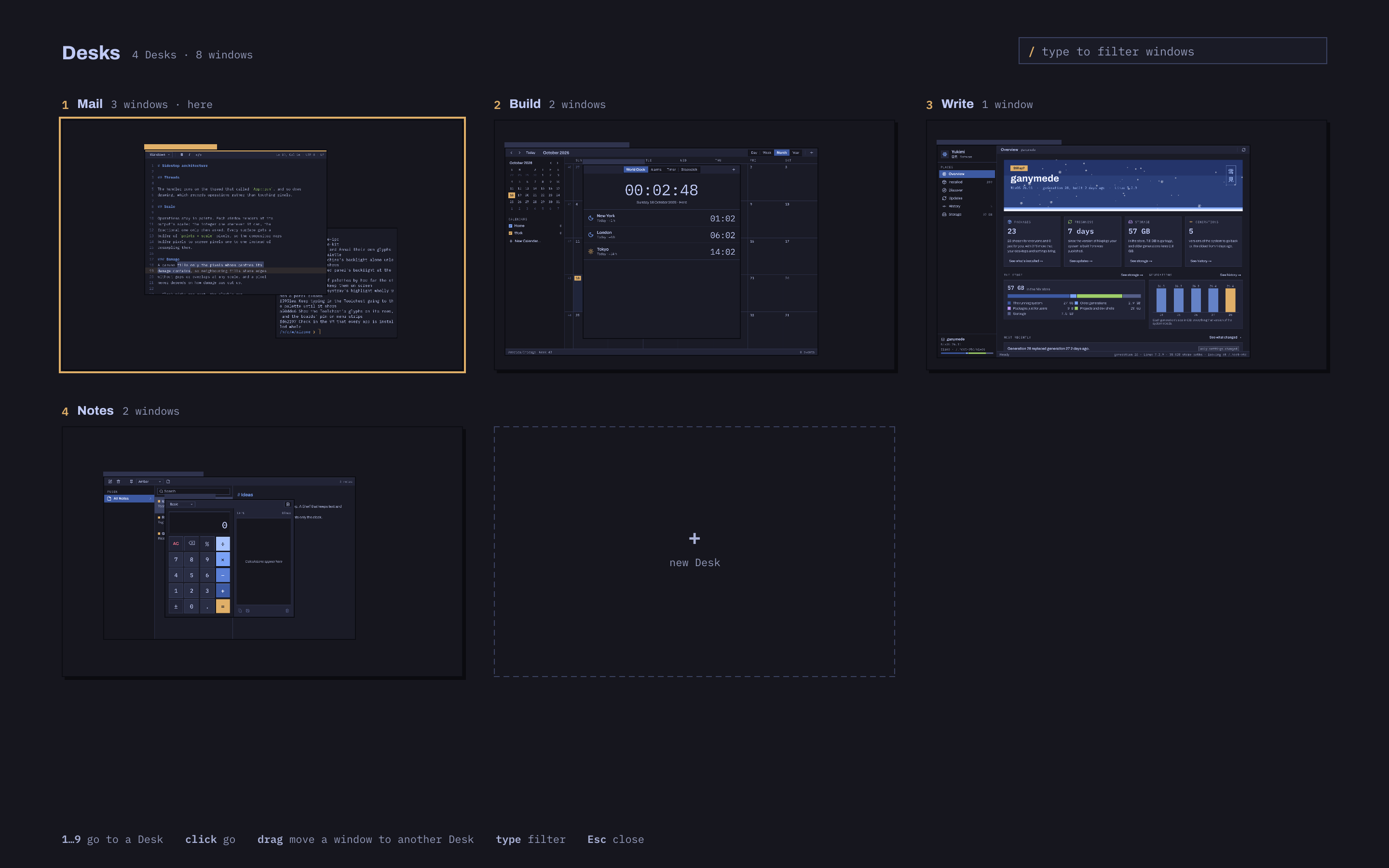
Named Desks keep work apart, a Desk to each display.
Four Desks to start, named in the menu bar's strip, each with a folder of its own where the terminal opens and the file chooser starts. Each display shows a Desk of its own: ControlSuper1 to ControlSuper9 show one on the display you're using, ControlSuperLeft and ControlSuperRight step, and ⇧ added takes the window along.
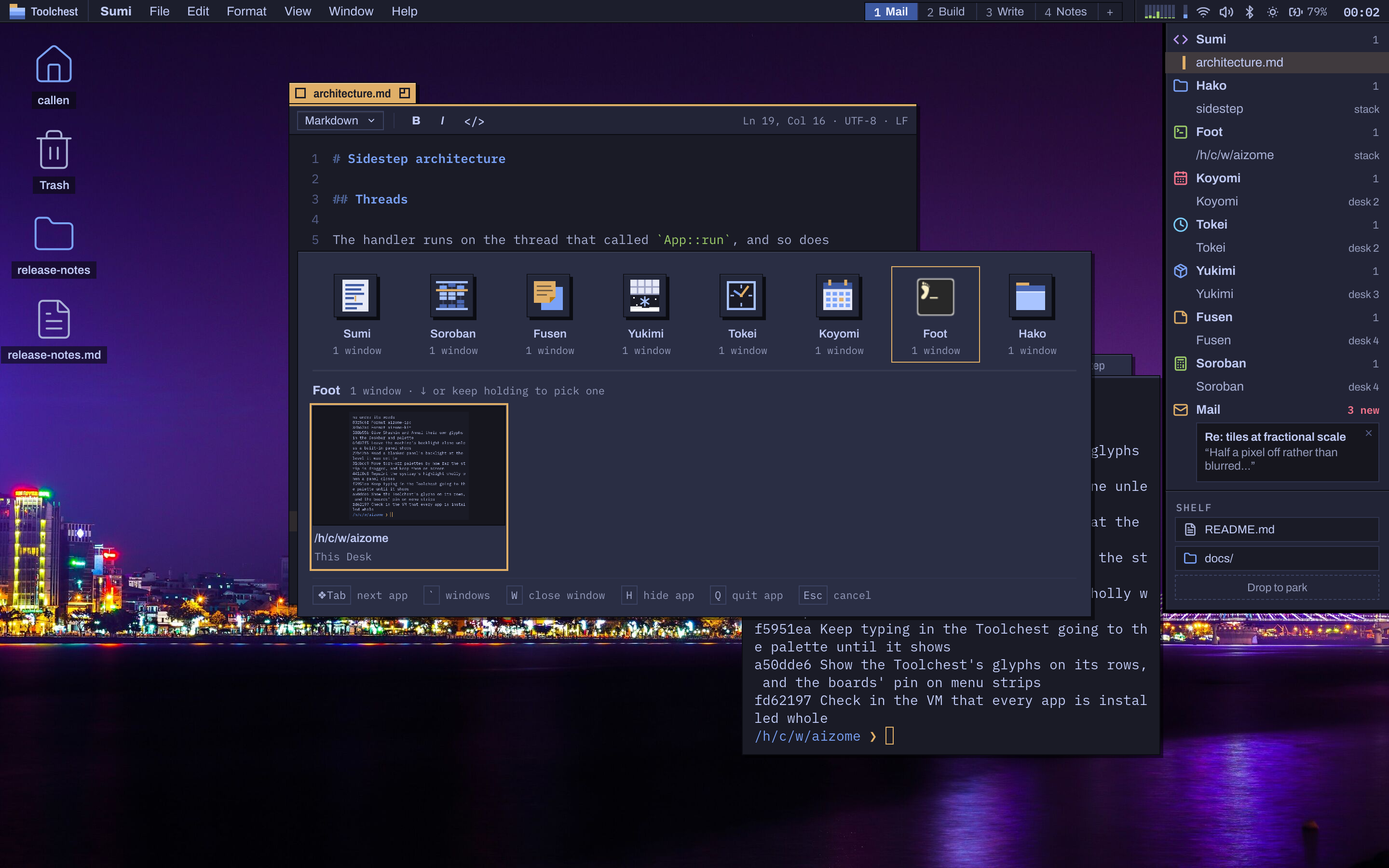
ControlSuperUp shows every Desk with its windows; drag a window to another Desk. SuperTab switches apps, then that app's windows. A window moved to a display of another size keeps its place in proportion, and a display that comes back gets its Desk back.
Super, the command key
SuperC, SuperV, SuperZ: Super does what ⌘ does on a Mac, in every app.
Control stays free for terminals and Emacs. Apps that aren't built with Aizome's kit still answer: the compositor turns SuperC into the Control shortcut they expect, and into Control-Shift-C in a terminal. The desktop keeps only a handful of chords for itself, all listed on the keys page.
Each keyboard keeps its own modifier keys, Caps Lock and Compose key. Plug in or pair a keyboard and Aizome offers to set it up: press the key beside its space bar and Settei suggests where Super goes, so it sits under your thumb on a Mac keyboard and a PC keyboard alike. Layouts and shortcuts are the same on every keyboard.
One file chooser
Every app that asks the desktop to open or save a file gets Files in miniature.
Chromium, Chrome and Electron apps such as VS Code, Obsidian, Slack and Signal; Zed; Flatpaks; Firefox and GTK 3 apps. The chooser opens over the app's own window as its dialog, with Hako's sidebar, its path bar, and the folder as a list sorted by any column, folders first.
A name you save as can be a path; a file that's there already is replaced only after asking. The app's filters and options show as pop-ups and checkboxes. The Go menu's keys are Hako's, and the chooser remembers where each app last chose, starting there next time, else in the current Desk's folder.
Notifications
A line in the menu bar, then filed under the app that sent it.
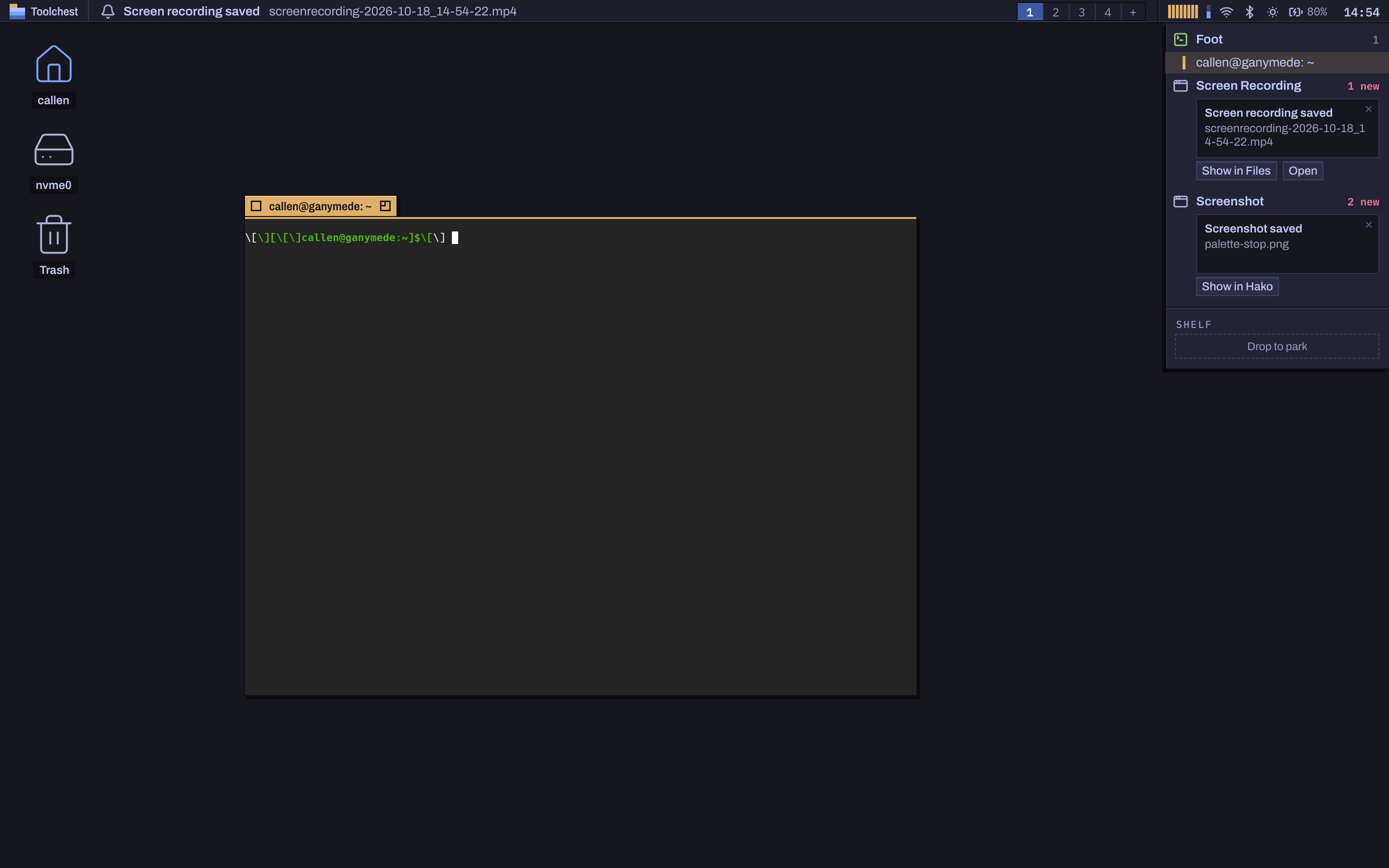
A new notification shows in the menu bar, the app's glyph, summary and the first line, in place of the menus for five seconds, then goes to the Deskbar under its app, with its actions as buttons. Critical ones stay as a card until you act. Do Not Disturb, from the palette, the clock or a schedule, files them quietly.
Volume, brightness and the keyboard's backlight show a level at the bottom of the screen as you press their keys.
Screenshots, recordings and sharing
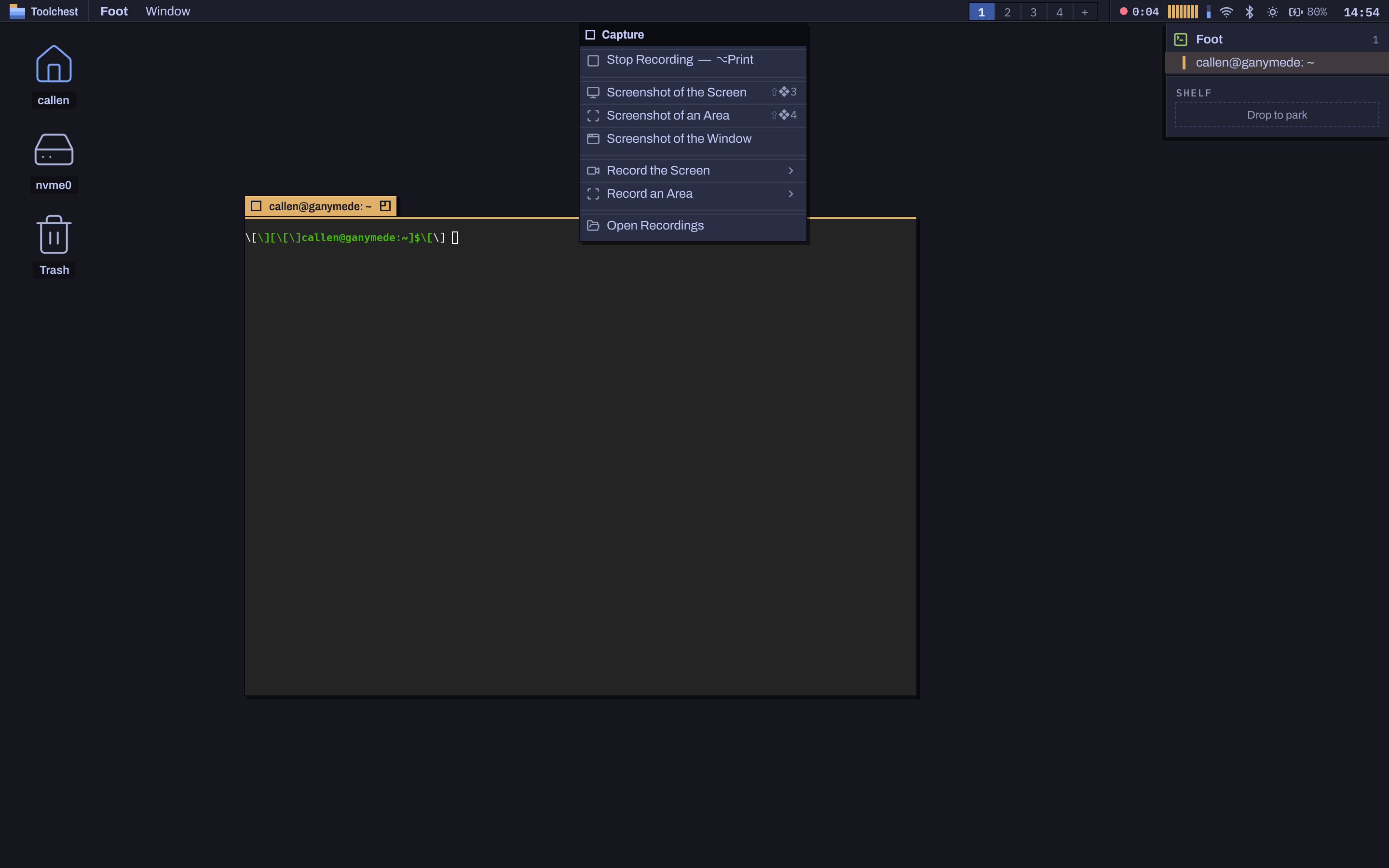
ShiftSuper5 opens the Capture menu, as ⌘⇧5 does on a Mac.
ShiftSuper3 takes the screen, ShiftSuper4 an area, and the Capture menu the window, recordings of the screen or an area, with what the computer plays and the microphone if you like, and your recordings. AltPrint starts and stops a recording. While one runs, a red dot and its time lead the systray.
Recordings are encoded on the GPU from the display's own planes, at no cost to the compositor, and land in ~/Videos/Recordings. When a browser shares your screen, a banner asks which screen or window, and a blue chip in the Deskbar says what's shared and stops it.
The lock screen and the login screen
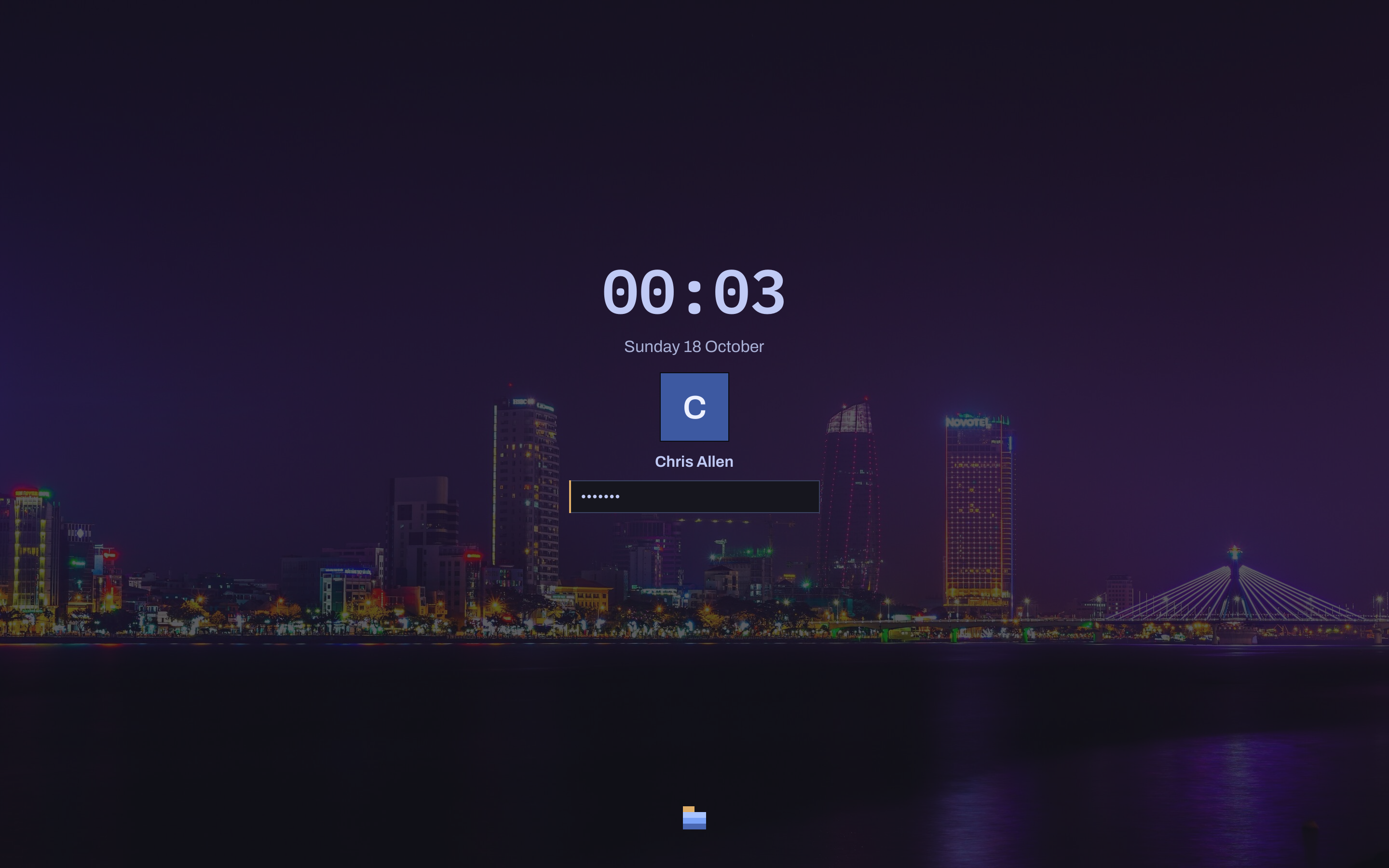
ControlSuperQ locks; so does leaving the computer, and sleep.
Every display gets the whole lock screen: the wallpaper under a scrim of kachi, the darkest indigo, the time in IBM Plex Mono, your picture and name, and a password field with the focus rail. Caps Lock is pointed out. A display that comes back while locked gets a field of its own at once.
Aizome's login screen is drawn with the same pieces. It shows every session the computer has, Aizome, other desktops and X11 ones, the people as a row of pictures, and the session that will start; F2 lists the sessions and F3 opens Sleep, Restart and Shut Down.
Recovery
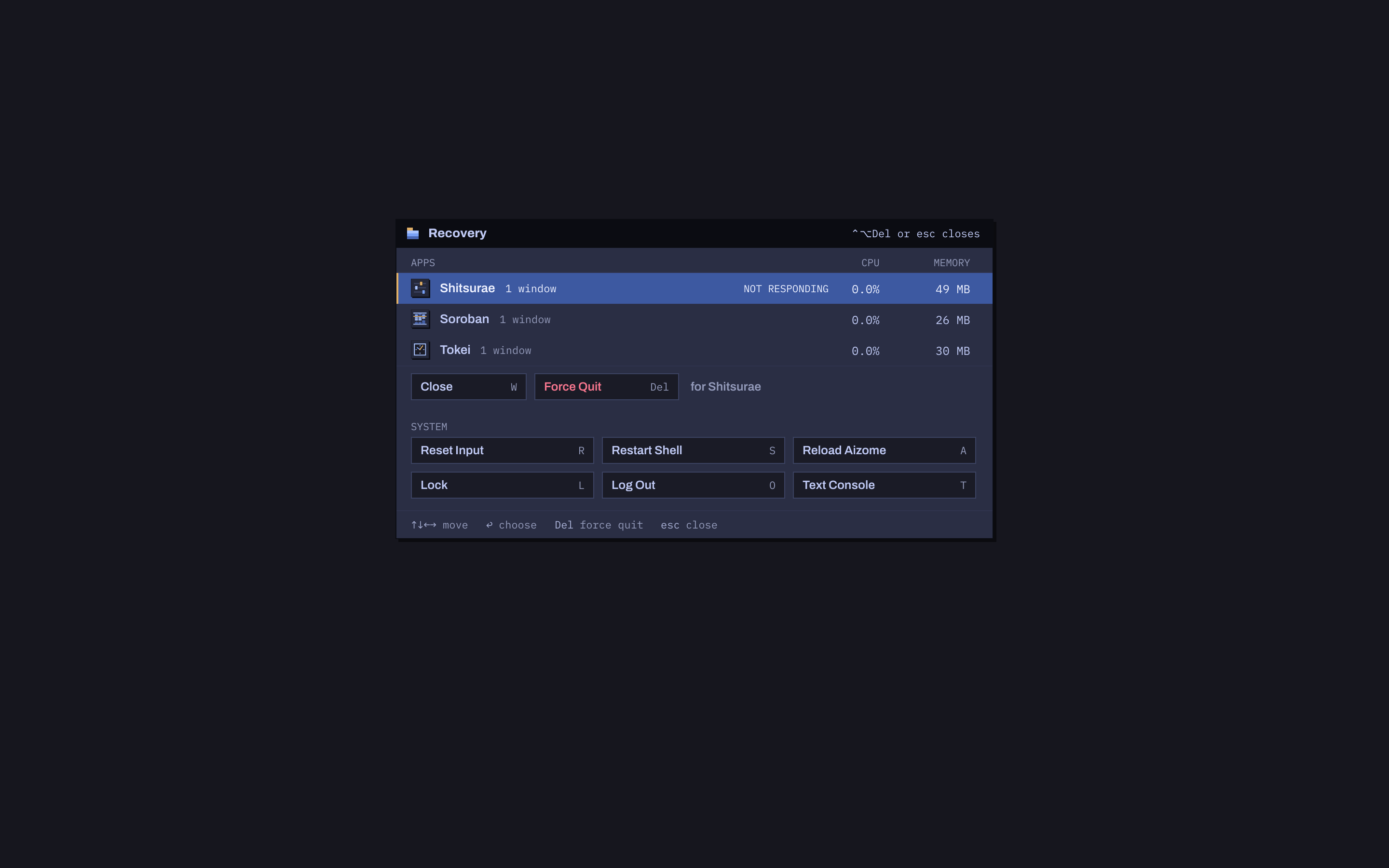
ControlAltDel gets a stuck desktop going again.
From anywhere, over full-screen games and the lock screen, the compositor draws its recovery overlay itself: the running apps with their processor and memory, those not responding first, with Close and Force Quit; and Reset Input, Restart Shell, Reload Aizome, Lock, Log Out and a text console. It works when the shell or an app is the problem.
Keep Awake is its quieter cousin: a switch in the battery panel, a cup in the systray while it's on, and the computer stays awake through long builds and downloads, lid closed or not, until you turn it off. The cup turns red if the hold can't be confirmed.